What is a bulk upload?
A bulk upload allows you to upload large numbers of new users quickly to the platform, whilst also assigning them to groups and setting platform access levels, all in one go! A bulk upload can also be used to update current users of the platform in bulk.
Who can bulk upload?
All Admins of the platform have access to bulk upload.
What format does the bulk upload require?
CSV format. There is an example template available to download if needed.
What user information does the platform require to bulk upload?
The User's first name, last name and email address are mandatory for adding users. Assigning to groups and/or setting platform access levels etc is optional.
What should my CSV layout look like?
Guidance:
- Use CSV column names for ease of association only.
User Fields – User fields should be created on the Platform BEFORE you upload your users. These can be Free text fields, for example, ‘Payroll number’ OR a Select list of options, for example ‘Location’ and the list options. The above example would be ‘Home, Manchester, London’ etc. Please note you can only filter insights by ‘select list’ options, Free text fields are only shown when reports are downloaded as a CSV and should be used only for your own records.
Groups - Groups should also be created on the Platform BEFORE you upload your users. Users can belong to multiple Groups - on the .csv you need to add a new column for each Group a user belongs to. If a user doesn’t belong to a Group simply leave the cell blank. In the above example, Groups on the platform will be L and M programme, Coaching Champions.
Platform Access – To assign platform access to a user use the following options: user, manager, org-admin. If left blank user will be selected by default. This must be the lower case only.
- Manager – To create a relationship between two users, simply use another column on your CSV to outline the email address of the manager for each user.
How do you bulk upload?
Go to the Admin area of the platform and navigate to 'Users' in the sidebar. You will now be in 'User Management'. You can add a new user manually by pressing 'Add new user' or Bulk upload by pressing 'Bulk Upload'. Then select the CSV file you want to load.
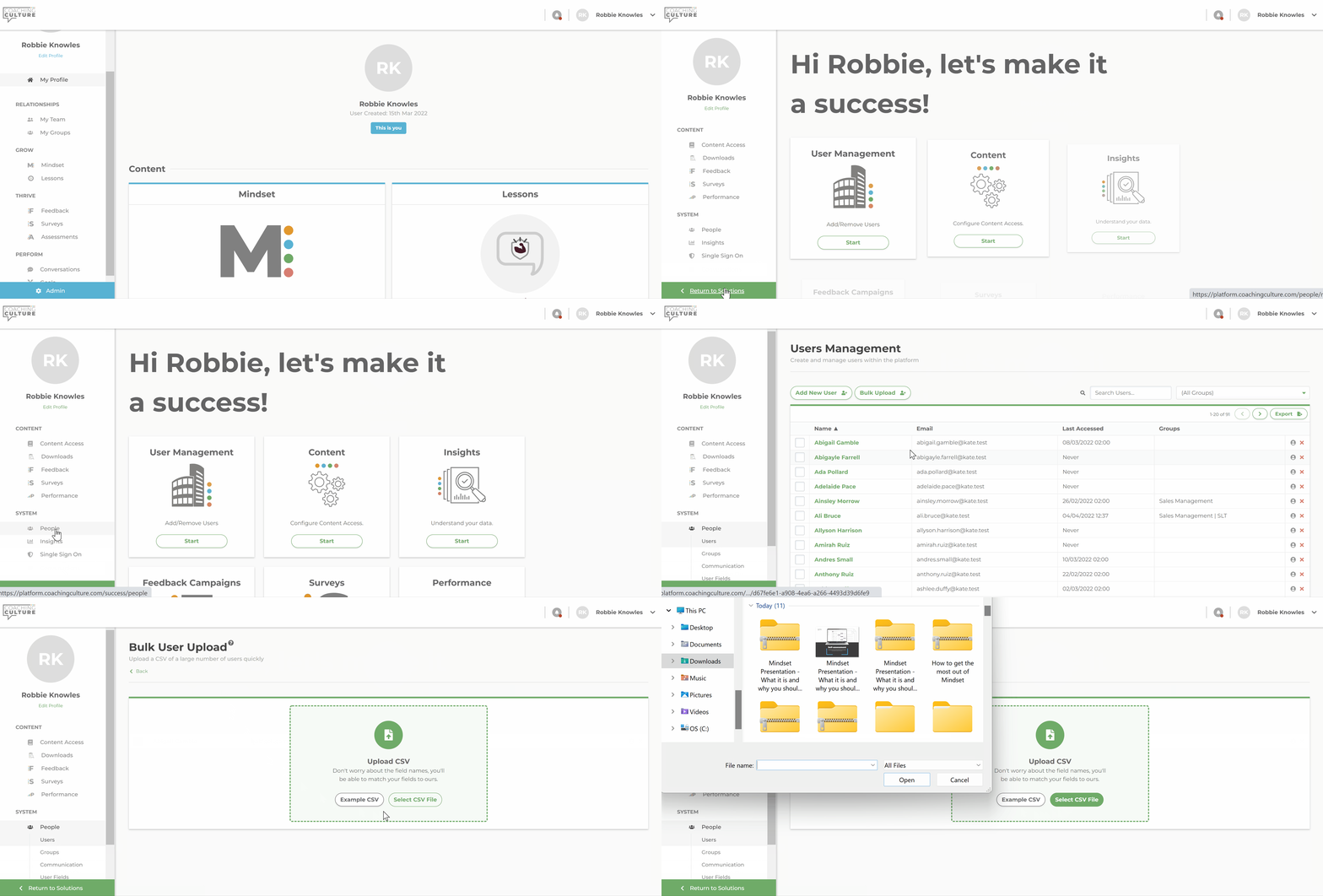
Once you upload your CSV file, you will be asked to associate the fields on your CSV to fields on the platform.
1. Field Associations defined:
- Email – The users' email address
- Name – Users' full name
- First Name – Users' first name only
- Last Name – Users' last name only
- Platform Access – The level of platform access the user will be assigned
- Manager – Create a manager/direct report relationship on the platform between two users
- User fields - Set the column for each user field you have
- Groups – The platform group(s) the user will be assigned to
Tip! - Name – If your CSV contains the users' full name in one column, use the ‘Name’ field. If your CSV contains users' first and last names in two separate columns, use the First and Last Name fields. Use these fields as appropriate, you do not need to use all three.
Tip! - Groups - Simply click to ‘add group field’ and select the appropriate CSV column name – this will then assign users to the groups listed in this column. If you wish to add users to multiple groups simply keep adding more group fields as appropriate.
2. Sample Data
A small preview of your user upload data will be displayed here so you can double-check it is correct before you upload.
3. Replace manager?
Select if you would like to replace a user's current manager on the platform with the manager stated on the upload, or, leave unchecked if you would like to add multiple managers for a user.
3. Email users?
Select if you would like to send a ‘Welcome email’ to any NEW user created on the upload, this includes log on details and a link to the Platform to get started.
Tip! – If you are uploading users pre-launch and do not wish to notify them at this point, untick the box. The platform's built-in comms tool will allow you to email users their log in details at a later date.