Once you have sent out a feedback request you will be able to see responses by navigating to 'Feedback' in the sidebar and looking at the table of 'Previous campaigns'.
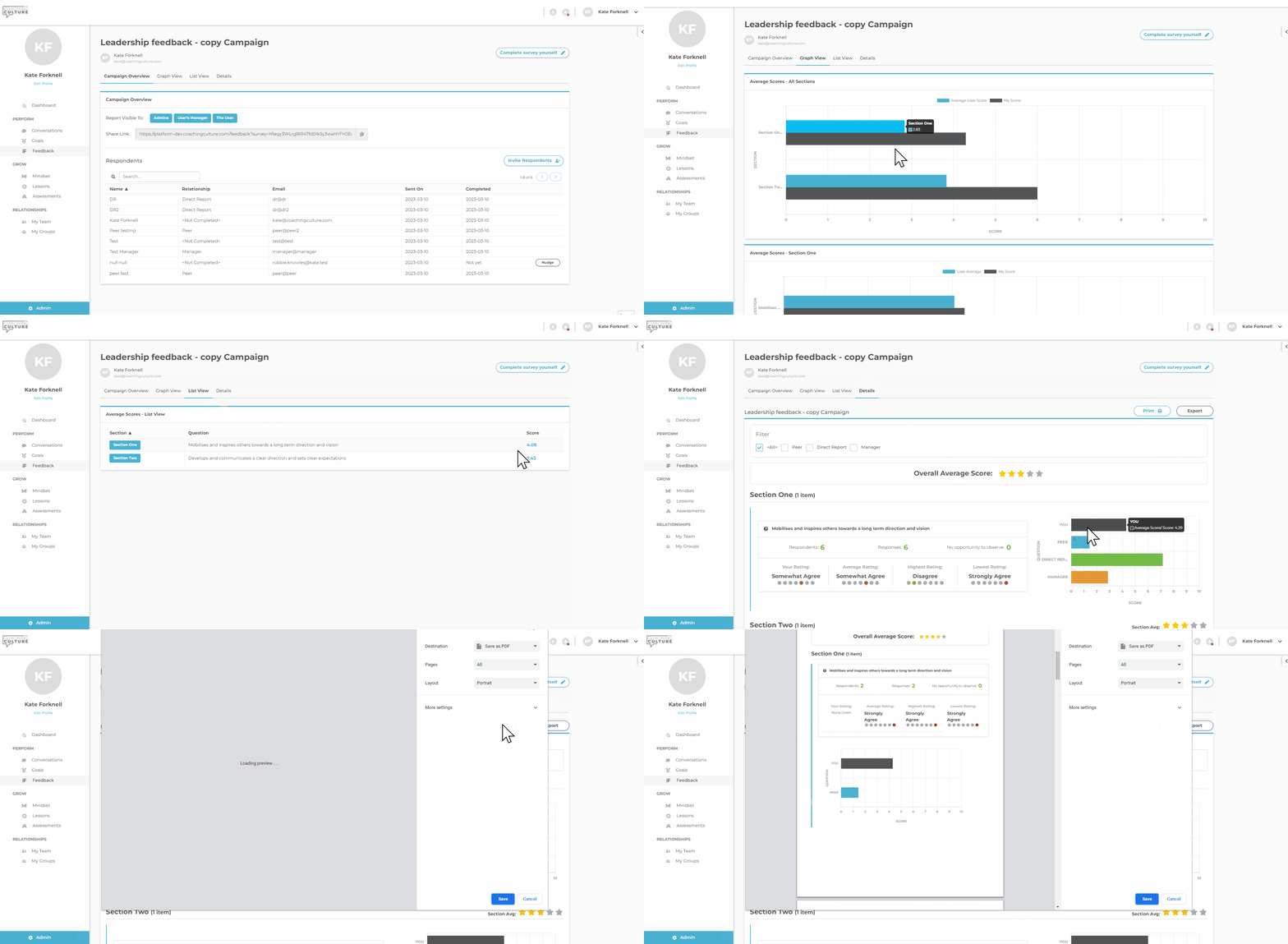
You will see 4 tabs on the Feedback campaign results:
- Campaign Overview- here you can see:
- Who the report is visible to
- The link to share for more responses - it is great to use if requesting feedback from customers
- A button to 'Complete survey yourself' if you haven't already
- The list of your respondents
- You can add more by pressing 'Invite Respondents'
- You can nudge a respondent if they haven't completed your feedback yet.
- Graph View - here you will see how your responses compare to the overall average of your respondents for the sections and the individual questions. This makes it easy to find those gaps in perception, highlighting strengths, blind spots and development areas.
- List view - all questions are listed here with the ability to sort from highest to lowest or the opposite. Quick to find the highest and lowest rated questions for focus.
- Detail view- For each question, you will see Your Rating, the Average, Highest and Lowest ratings. If the campaign was set up to collect (identify) relationships you will also be able to filter by those relationships.
- If the campaign was set as anonymous you will not see the names against the comments but if it is transparent you will.
- The detail view can now be exported into CSV for further analysis. Take a look at the print out too.