To create a new feedback campaign navigate to Admin > Feedback > Campaigns and then press
- Select the relevant feedback form - if you haven't created any then you will need to do that first.
- Name the Campaign and add a description. This will display to the user on their Feedback page. You can also add an image but this is optional.
- Select if you wish for the survey to be anonymous or transparent. If set as anonymous there must be at least 5 respondents before the results show in the report.
- Decide if you want to collect (identify) the relationship. This is effective if you want to see how different groups have scored. Direct Report, Line manager and Coach will appear but these can be edited and you can add more. They will then appear as filters in the report.
- Note! If you have selected the campaign to be anonymous then collecting relationships may mean that respondents can be identified.
- Specify who will be able to see the responses. An example of this in practice would be if the Users in the campaign are about to attend a leadership programme. You may want the trainer to see the responses but not the user so that they can be talked through in a session. In this instance, you would select 'Specific User' and leave 'The User' unticked.
- Add users to the campaign that you would like to go to and request feedback about themselves. Don't worry if you miss some - you can add them after the campaign is created.
- Choose if you would like to send the system email
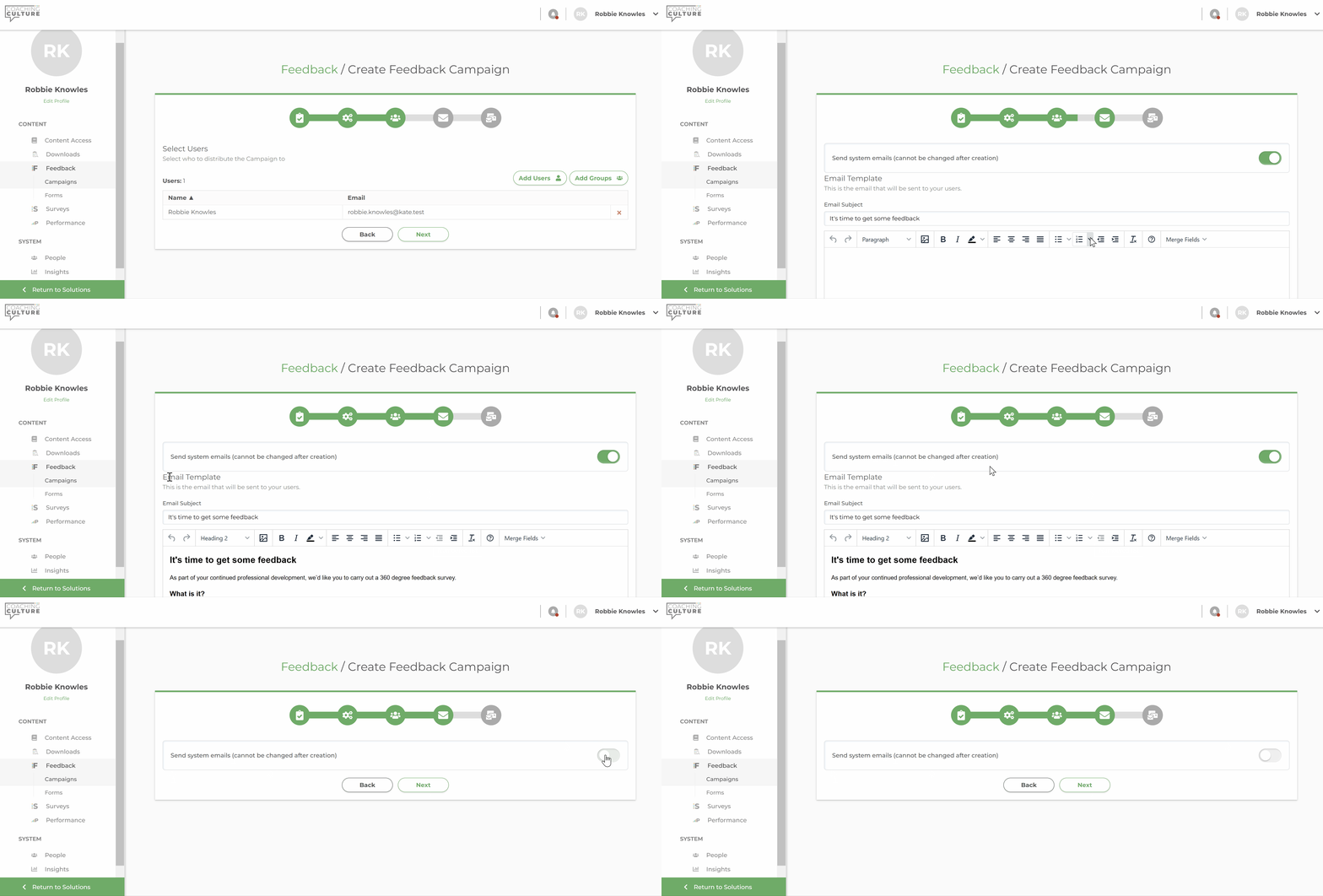
- Warning! You will not be able to change if the system email is on or off after the campaign is sent.
- If you choose to send the system email, edit the email template that will be sent to the users who are requesting feedback about themselves.
- Tip! Use the merge fields to personalise the email.
- Edit the email that the users who are requesting feedback will be sending to their respondents.
- Tip! Use the merge field 'Sender's name' to ensure the respondent knows who is asking for feedback.
Once you are happy press and this will send the campaign to the users you have specified for them to request feedback.
Warning! - Once you send the campaign you are unable to delete users from the campaign and edit it. Please make sure you are happy before pressing submit.